 WriterMorph
Help › Productivity
Tasks, Schedule, Targets and Pomodoro
Plan your writing work with the Task Manager, a Gantt schedule, a calendar, reminders, word targets with deadlines and a built-in Pomodoro timer.
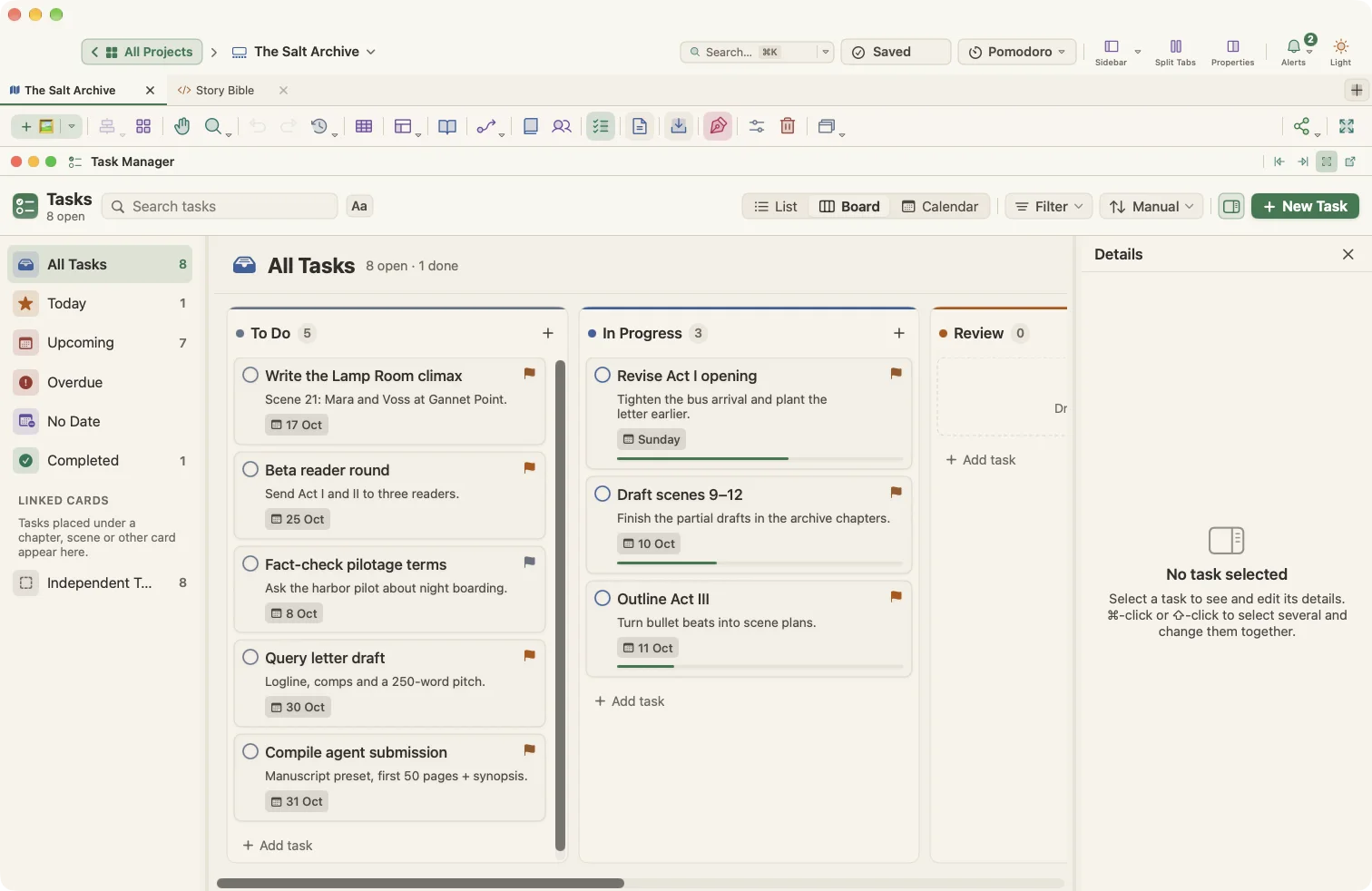
A book is also a project. WriterMorph keeps your research tasks, revisions and deadlines next to the writing they belong to.
Tasks live on cards
A task is a card on your canvas. You can create task cards directly, link a task to a chapter or scene, or turn any card into a task from its Properties.
- Insert › New Task Card adds a task card to the canvas.
- Task types include To Do, Task, Research, Review, Edit, Deadline, Milestone and Reminder.
The Task Manager
Open it with View › Task Manager (⌃⌘K) or the Tasks button in the planner toolbar. It has three views:
| View | Use it to |
|---|---|
| List | See tasks with status, priority, due date, duration and subtasks. Nest subtasks up to four levels and drag to reorder |
| Board | A kanban board with one column per status. Drag a card to change its status |
| Calendar | Month, week or day view. Drag a task from the unscheduled tray onto a day or hour to schedule it |
Smart lists
The sidebar groups tasks into All Tasks, Today, Upcoming, Overdue, No Date and Completed, plus tasks linked to each card and Independent Tasks. Drop a task on a list to reschedule it, for example on Today.
Search, filter, sort and group
- Search tasks looks in titles, synopses and linked card titles.
- Filter by status, priority, due date (overdue, today, this week, no date), linked card or POV.
- Sort by manual order, due date, priority, status or title.
- Group the list by status, priority, due date or linked card.
Select several tasks to change their status, priority or schedule at once, mark them done, or move them to the trash.
Task details
The task inspector holds the Title, Status, Priority, Start and Due dates, Length, Subtasks, Notes, the Linked card and an Assignee.
- Default statuses: To Do, In Progress, Review, Done, Blocked.
- Default priorities: Low, Medium, High, Urgent.
You can rename and add statuses, priorities and task types in Project › Project Settings….
Start, length and due date stay in sync: change one and WriterMorph adjusts the others.
Dependencies
In a task's Properties, add Dependencies of four kinds (finish-to-start, start-to-start, finish-to-finish and start-to-finish), with an optional lag. When Settings › Tasks › Move dependent tasks automatically is on, moving one task moves the tasks that depend on it.
The schedule (Gantt chart)
The Timeline button in the planner toolbar opens a Gantt chart at the bottom of the canvas. The same chart appears as the Schedule view in the Writer Timeline.
- Choose a scale: Hour, Day, Week, Month or Quarter.
- Drag across a row to give a card or task dates; drag bars to move them.
- Show dependency arrows with Links.
- Filter by type, status or date, group rows by outline, type or status, and use Fit to see everything.
The Writer Timeline's Roadmap view shows the same work on a calendar with one lane per section. Plan Chapters… spreads chapters evenly, or by word target, between a start and an end date.
Alerts and reminders
The Alerts button in the top bar shows what needs attention: overdue tasks, tasks due today, tomorrow or within the week, tasks in progress without a deadline, and blocked tasks. A badge shows the count, and the button turns orange when something is urgent.
To be reminded about a task:
- Open the task's Properties and turn on Reminder.
- Choose whether it is relative to the due date or the start date.
- Pick a lead time, from 1 hour to 1 week, and how often to repeat it.
Reminders arrive as macOS notifications while WriterMorph is running. Settings › Tasks sets defaults for new tasks, reminders and the calendar's first day of the week.
Study Planner and other project timelines
In student projects the Writer Timeline becomes the Study Planner, with an assignment calendar, deadlines and progress. In academic, teaching and work projects it becomes a research timeline, course plan or project roadmap. Use Project › Convert Planner To to switch a planner to a student, academic or other set.
Word targets and deadlines
- Give any card or document a word target. Progress bars appear on cards, in the Outliner and in the Properties panel.
- Project › Show Project Targets (⇧⌘T) sets a Manuscript target and a Session target.
- Turn on Deadline, choose a due date and your Writing days, and WriterMorph tells you how many words a day you need. It can set the session target automatically.
- Turn on Tell me when a target is reached to get a message, with an optional sound, when you hit your session or project target.
On the Home screen, the Today card tracks words written today against your daily goal, and Writing Streak counts the days in a row you have written.
Pomodoro timer
Click the Pomodoro pill in the top bar, or choose Window › Pomodoro.
- Type what you are working on.
- Click Start. The pill shows Focus, Break or Paused, the time and a progress bar.
- When a phase ends, a small card appears with Start Break or Start Focus, Remind Me in 5 Min and Dismiss, along with a macOS notification.
The defaults are 25 minutes of focus, a 5-minute short break and a 15-minute long break every 4 sessions. You can change all of them in the popover, and turn on Auto-start next phase or turn off the sound. The popover also counts today's sessions.
Tip: The Pomodoro control is also available in Composition Mode.