 WriterMorph
Help › Projects & Data
Settings and Customization
Choose a theme, design your own colors, adjust text sizes, customize toolbars and icons, and set how WriterMorph saves, edits and behaves.
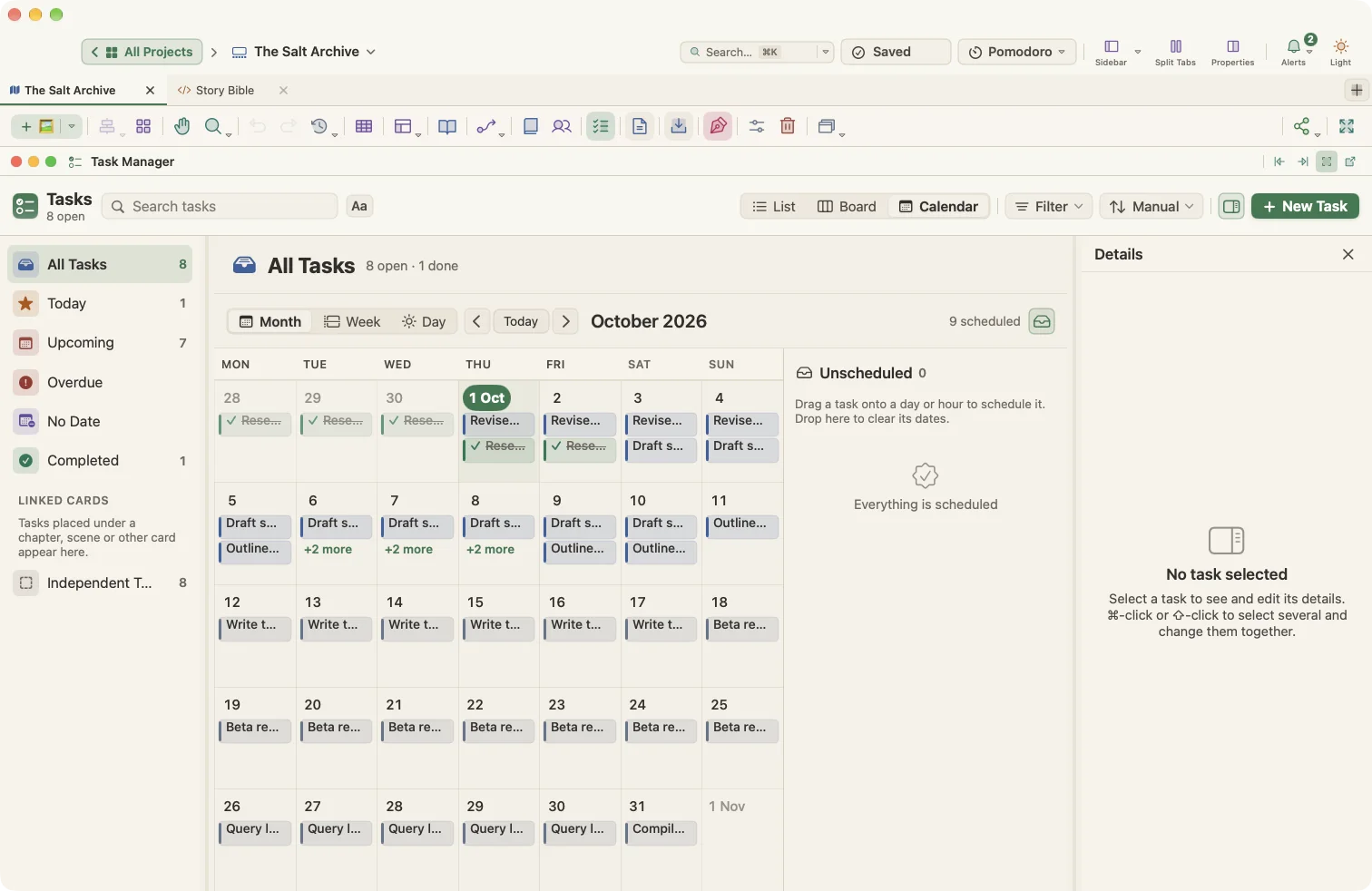
Open WriterMorph › Settings… (⌘,). The main Settings tabs are:
General · Editing · Behaviors · Appearance · Corrections · Tasks · Sharing · Backup · Shortcuts
Most tabs have a Defaults button that resets only that tab, and a Manage… menu for saving and loading settings presets and themes as files.
There are also per-project settings in Project › Project Settings… (⌥⌘,): canvas, connections, card types, properties, tags, statuses, task settings and story tools. They are saved automatically.
Themes
WriterMorph has twelve built-in themes:
| Theme | Character |
|---|---|
| Forest | The default dark theme |
| Slate | Blue-grey dark |
| Cream | The default light theme |
| Greyscale | Everything in greys |
| Monochrome | Pure black and white |
| E-ink | Paper-like, black on grey |
| Terminal Green, Terminal Blue, Terminal White, Terminal Red | Retro phosphor-screen looks |
| Paper | Warm paper and brown ink |
| Blueprint | White lines on blueprint blue |
Most themes come in both a light and a dark version.
- Pick a theme from WriterMorph › Appearance.
- Match macOS Appearance follows the system's light or dark mode.
- Toggle Light / Dark (⌥⇧⌘L) switches instantly. The top bar has a light/dark button too.
Theme Designer
In Settings › Appearance › Theme Designer you can create a Custom theme by editing nine colors: backgrounds, borders, three text colors and the accent. You can also set the default editor font and text color. Save your theme with Manage… › Save Theme… and switch between saved themes from WriterMorph › Theme.
Text size and interface size
- Menu & panel font size in the Theme Designer scales the interface text from 0.9× to 1.3×.
- Side panel text size scales the binder, outliner and inspector text.
- Individual panes such as the Binder, Outliner, Inspector and Sidebar have their own text sizes in Settings › Appearance, and many panes have an Aa menu.
- The editor text zoom (⌘> and ⌘<) only changes how text looks on screen, never the document.
Editor defaults
Settings › Editing has four sections:
- Options: default zoom, ruler units, typewriter scrolling and its line position, focus mode, drop cap, line numbers, "Light paper even in dark mode", the property block (visible, collapsed or hidden), live counts and the page layout for new editors.
- Formatting: the default font, size, alignment, line spacing and first-line indent. Use Formatting in Current Editor applies them to the open text.
- Toolbar: show, hide and reorder editor toolbar groups.
- Revisions: the color for each revision level, and whether deletions are struck through instead of removed.
Toolbars and icons
Right-click any toolbar and choose Icon and Text, Icon Only or Text Only. One setting applies to all toolbars. Choose Use Monochrome Icons for single-color icons, or Customize Toolbar… to show, hide and reorder items for each bar.
For card types, you can choose emoji, SF Symbols or icons from the bundled Line, Lucide and Phosphor icon sets, or import your own SVG or PNG icons (Settings › General › Icons).
Canvas behavior
In Settings › Behaviors, choose:
- whether dragging on empty canvas pans or selects (hold ⇧ or ⌥ for the other),
- whether the mouse wheel zooms or pans,
- whether two-finger trackpad scrolling pans or zooms.
Holding Space to pan, middle-button drag and pinch-to-zoom always work.
Behaviors also covers Composition Mode (which screen, blanking other screens, whether Esc closes it), double-clicking, drag and drop, new folders and files, the Return key and snapshots.
General
Settings › General includes:
- Startup: reopen the last project, or show the Home screen.
- Home Screen: which writing stats to show.
- Saving: the autosave delay and save-time snapshots and backups.
- Author Information: your name, pen name and address, used on manuscript title pages and in compile.
- Language: the spelling language.
- Quick Notes: the notes folder and font size.
- Shared Templates: a folder of document templates.
- Citations: your bibliography manager app (such as Zotero, Bookends or EndNote), used by Insert › Citation from Bibliography Manager….
- Automatic Quit: quit after a period of inactivity.
- Library: where your projects live, iCloud Drive, and word-count options.
Corrections
Spelling and grammar checking, smart quotes and dashes, link and data detection, and auto-completion. Open System Text Settings… opens the related macOS settings.
Sharing
- Import: options for rich text and the plain-text file types to accept.
- Export: your default compile author, preset and format, whether to reveal compiled files in Finder, and page size, HTML and image quality options for exports.
- Sync: the external sync folder.
Quick Notes
Window › Quick Notes (⇧⌘⏎) opens a small floating notepad that works across all projects. Each note is a plain text file. Send to Project turns a note into a new tab or appends it to the selected card.