 WriterMorph
Help › Projects & Data
Importing Your Work
Bring in Word, RTF, Markdown, text, Scrivener projects, Obsidian vaults, PDFs, images and web pages.
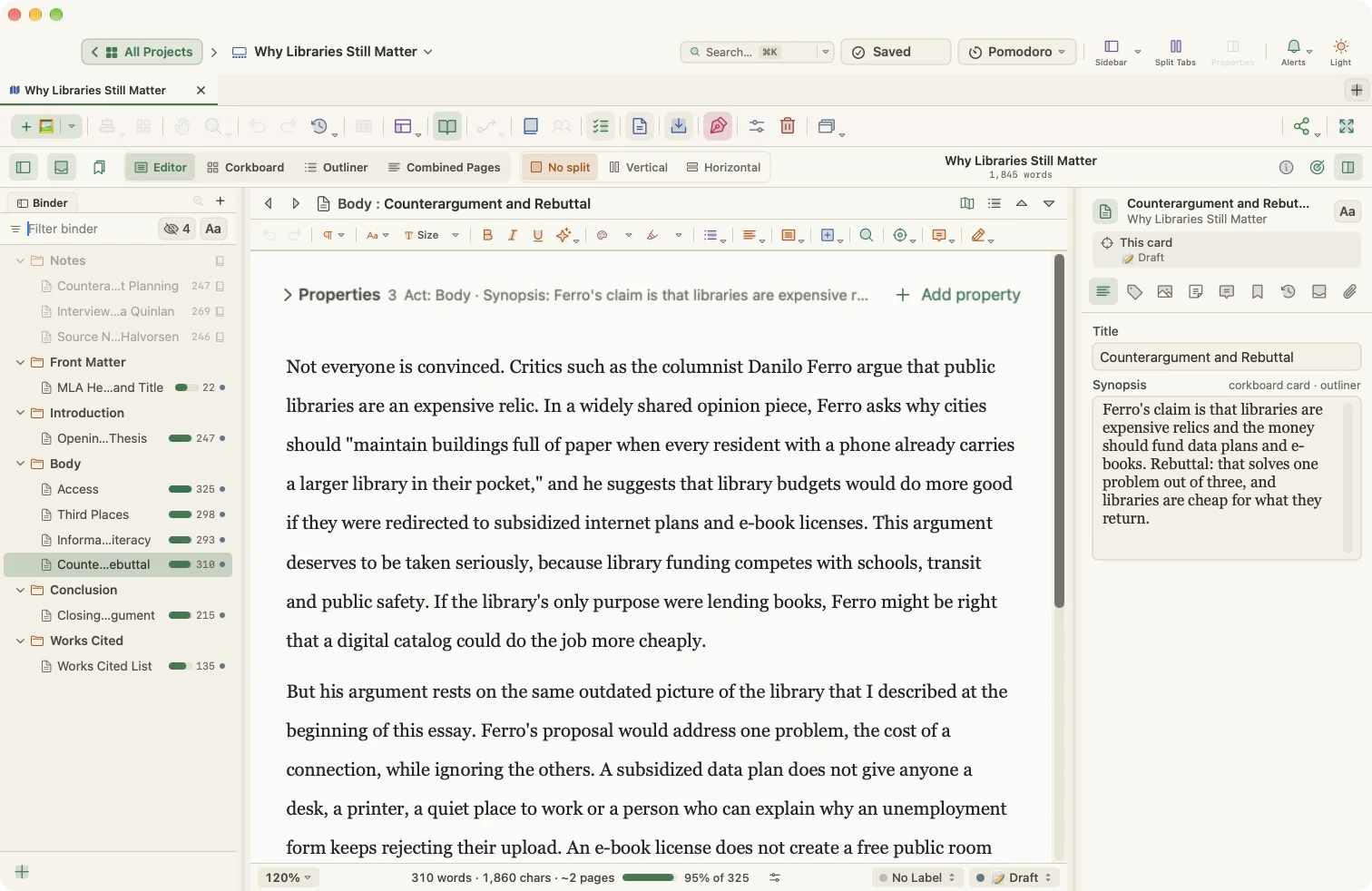
You can bring existing writing and research into WriterMorph in several ways. Importing never changes your original files.
Word, OpenDocument and RTF into the book
- Open Manuscript Mode (⌥⌘M).
- Choose File › Import Files › Word, OpenDocument or RTF into the Book….
- Select one or more
.docx,.doc,.odt,.rtfor.rtfdfiles. - Choose how to split them:
- Split at Headings: large headings become folders and smaller headings become documents.
- One Document per File: each file becomes one document.
Scrivener projects
Choose File › Import Files › Scrivener Project (.scriv)…. WriterMorph reads the Draft folder (folders, texts, synopses and notes) and the Research folder.
Text, Markdown, HTML and RTF files as tabs
File › Import Files › Text, Markdown, HTML or RTF Files… adds each file to the project as a tab: Markdown files open as Markdown tabs, HTML files as HTML page tabs, and text and RTF files as notes.
You can choose which plain-text file extensions are accepted in Settings › Sharing › Import.
Research files, web pages, PDFs and images
- File › Import Files › Research Files into the Binder…: PDFs, images, videos and documents for reference.
- File › Import Files › Web Page into the Binder…: a web page as a research item.
- File › Import Files › PDF…: a PDF as its own tab.
- File › Import Files › Images…: images as tabs.
Research items stay outside the manuscript and are never compiled.
Obsidian vaults
WriterMorph reads Obsidian vaults, including their YAML frontmatter.
- Choose File › Import › Obsidian Vault….
- Select the vault folder. A progress window and a report show what was imported.
The vault becomes a new project with one planner. WriterMorph maps notes to cards:
| In Obsidian | In WriterMorph |
|---|---|
Class: Scene or Chapter notes |
Scene cards in the manuscript, in number order |
Act |
Act folders (Act I, Act II, Act III) |
Synopsis / Summary |
The card's synopsis and notes |
When, End, Duration |
Story time on the Writer Timeline |
POV, Character |
Point of view and cast |
Subplot |
Plotlines |
Place, Location, Setting |
Places |
Status, Tension, Beat, Target, tags |
The matching card fields |
Class: Character and Class: Place notes |
Character and location profile cards |
| Any other key | A typed card property (number, date, checkbox, list, link and so on) |
| Images and PDFs | Copied into the project and attached or shown as tabs |
Wikilinks with aliases keep their alias text, embedded images are copied in, and Obsidian comments are removed. Your vault itself is never modified.
Updating from a vault
Keep working in Obsidian? File › Import › Obsidian Vault into Current Planner (Update by ID)… updates cards in place instead of duplicating them, keeps their positions on the canvas, and adds new notes. WriterMorph takes a revert point first, so you can undo the update.
Exporting back to Obsidian
File › Export › Obsidian Vault… writes every card as a Markdown file with frontmatter, in folders that mirror your binder. Importing that export again gives you the same cards, fields and connections.
Other imports
- File › Import › Planner JSON…: a WriterMorph planner exported as JSON.
- File › Import › Book (.wmorph)…: a manuscript package from another project.