 WriterMorph
Help › Projects & Data
Projects, Files and Backups
How WriterMorph stores your projects as .wmorph files, saves automatically, keeps backups, uses the trash and syncs through iCloud Drive or another folder.
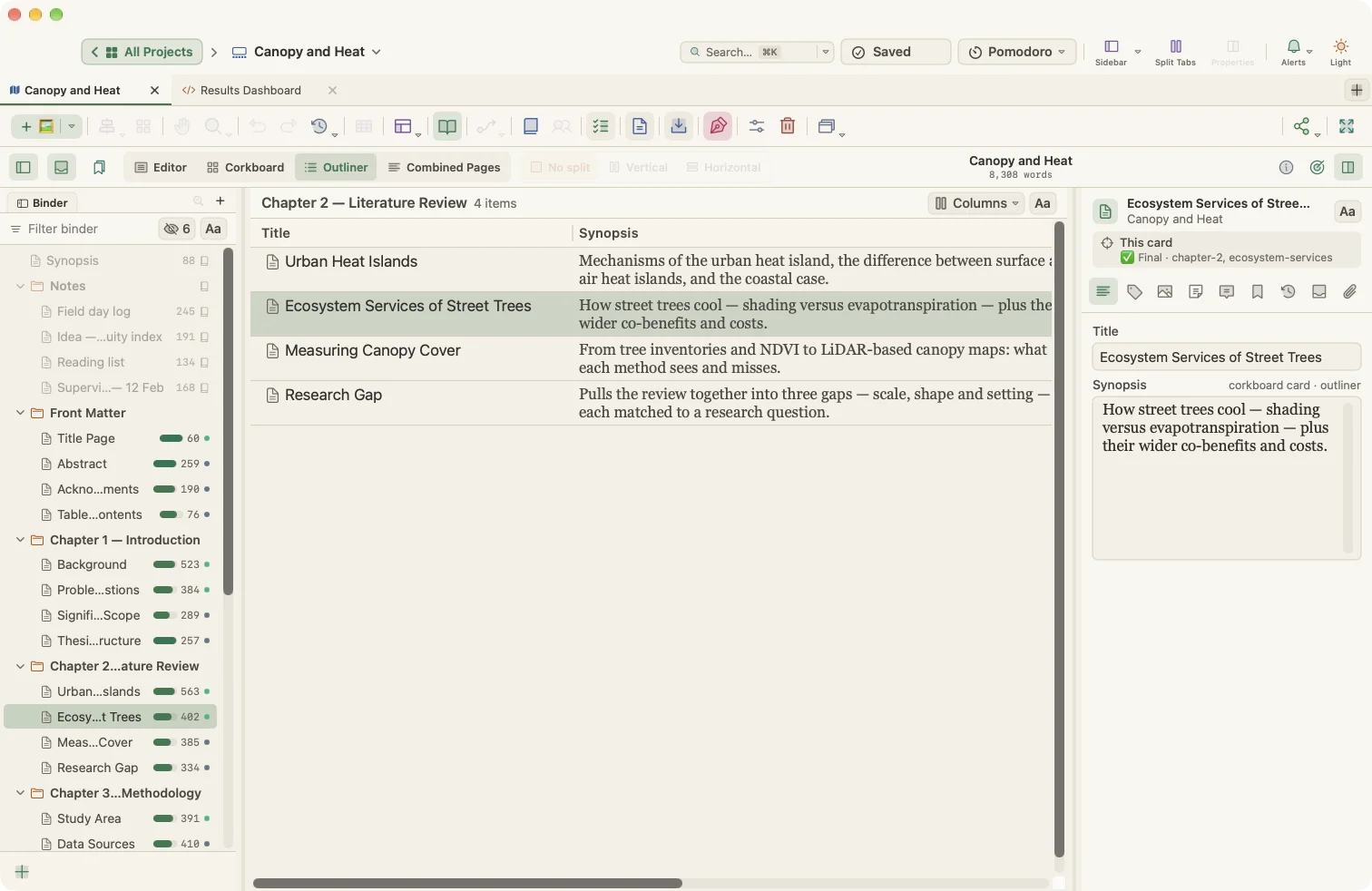
Your writing belongs to you. WriterMorph stores everything in ordinary files on your Mac, with no account and no server.
Projects are .wmorph files
Each project is a single .wmorph file. In Finder it looks like one document, but it is a macOS package that holds your planners, manuscript text, images, attachments and internal backups.
- File › Show Project in Finder reveals the current project.
- You can copy, move, back up or email a .wmorph file like any other document.
- Double-click a .wmorph file to open it.
The library
WriterMorph keeps your projects in a library folder. You choose its location on first launch, and you can change it later in Settings › General › Library:
- On this Mac: the default library folder in Documents.
- iCloud Drive: see iCloud Drive below.
- Another folder: any folder you choose, such as Dropbox or an external disk.
Projects stored elsewhere still appear on the Home screen under Projects Elsewhere, where you can move or copy them into the library.
WriterMorph › Reveal Support Folder in Finder opens the library folder.
Saving
- WriterMorph saves automatically shortly after you stop typing. The delay is 1.5 seconds by default and can be changed in Settings › General › Saving.
- File › Save (⌘S) saves immediately. The top bar shows Saved, or Save failed if something went wrong.
- File › Save As… (⇧⌘S) saves a copy under a new name.
- Optionally, each manual save can also take snapshots of changed documents and back up the whole project. Both are options in Settings › General › Saving.
Backups
Automatic backups are on by default. WriterMorph makes a complete, compressed copy of the project when you open it and when you close it or quit.
In Settings › Backup you can:
- add a backup on every manual save, and before syncing with an external folder,
- choose whether backups are zipped and dated,
- keep only the most recent backups (25 by default),
- choose the backup folder,
- set how often per-card snapshots are taken (daily, weekly or monthly).
Back up on demand:
- File › Back Up › Back Up Now or Project › Back Up Project Now
- File › Back Up › Back Up To… to save a backup wherever you like
- File › Back Up › Open Backup Folder to see your backups
To restore a backup, unzip it and open the .wmorph file it contains.
Trash and restore
Nothing you delete disappears at once.
| What you delete | Where it goes | How to restore |
|---|---|---|
| Cards | The card trash | Project › Project Trash…, then Restore |
| Tabs | The project trash | Project › Project Trash…, then Restore |
| Manuscript documents | The binder's trash | Click the trash button at the bottom of the binder, then Restore |
| Whole projects | The macOS Trash | On the Home screen, open Trash, then Put Back or Put Back and Open |
Use Project › Empty Card Trash… or Delete Permanently… only when you are sure.
iCloud Drive
WriterMorph can store your whole library in iCloud Drive, so the same projects appear on every Mac signed in to your Apple account.
- Open Settings › General › Library.
- Choose Store Library in iCloud Drive….
- WriterMorph moves the library into iCloud Drive, keeps the old folder as a backup, and restarts.
A status indicator shows Up to date, Syncing, Offline or Conflict. The File › Sync menu has iCloud: Check Now, iCloud: Resolve Conflicts… and iCloud: Library Settings….
If the same project changed on two Macs, WriterMorph never overwrites it silently. You choose Keep this Mac's, Keep other Mac's or Keep both.
Tip: Avoid editing the same project on two Macs at the same moment. Let iCloud finish syncing before you switch.
To stop, choose Stop Using iCloud (keep files).
Sync with an external folder
Want to edit your text on another device in any plain-text app? Set up a sync folder in Settings › Sharing › Sync (or File › Sync › Sync Folder Settings…). WriterMorph writes each text document as a .txt file to that folder. Choose File › Sync › Sync with External Folder Now to bring edited files back in.
Organizing projects on the Home screen
Right-click a project to Rename…, add it to Favorites, Archive it, change its color or icon, Duplicate it, Save as Template…, Show in Finder or Move to Trash….